Teaching a live class
Put a lesson on the big screen and in everyone's hand at the same time. Your slides go on the projector or the TV, your notes stay on your laptop or phone, and the people in the room follow along and answer questions on their own phones. They don't need an app or an account.
How a live class works
A live class runs on three kinds of screen. Each one shows only what its viewer needs, and they all stay on the same slide because one place, the class room, keeps track of where you are.
There are two ways to teach, and the rest of this guide walks through both:
- With a laptop and a projector, in a classroom or a fellowship hall. The laptop drives the projector, and you can keep a presenter view on the laptop or carry your phone as the clicker.
- With just your phone and a TV, in someone's living room. Your phone sends the class to the TV and becomes the clicker.
Get the course and your notes ready
You present a course you already have. A course is made of sections (Week 1, Week 2), each holding lessons and quizzes, and each lesson holds slides. Slides are numbered by where they sit: 1.1.3 is section 1, lesson 1, slide 3. You'll see those numbers on every screen while you teach.
Build or change the course in Course Mgmt, which opens the course editor. Add slides with + Add slide, lessons with + Add Lesson, and quizzes with + Add Quiz. If your lesson is a PowerPoint, import it: each PowerPoint slide becomes one slide, and its speaker notes come with it.
Every quiz question needs one answer marked correct before it saves. To use a question as an opinion poll ("Have you ever felt…?"), mark any answer, then turn off Show correct answers when you open the room. The room will show only the counts.
Teacher Notes
Each course has one Teacher Notes notebook, shared with everyone who teaches the course. It already has a page for every section, lesson and slide, so you never have to set it up. Open the slide you want to write about and press Teacher Notes 1.1.1 in the bar under the slide (or 📝 Teacher Notes in the editor). The notebook opens beside the slide on that slide's page. A dot on the button means the slide has notes.
Notes can hold headings, checklists, bullet lists and callouts. They follow you as you step through the lesson, and while you present they appear on your clicker under the slide. Students never see them, and neither does the projector.
The Present button appears for the course's instructors and for your church's admins. Add co-teachers as instructors on the course so they can drive the slides and read the notes too.
Teaching with a laptop and a projector
Plug the laptop into the projector, sign in to BetterGather, and open the course. Everything below happens from the lesson page.
Open the first lesson and press Present
Under the slide is one bar with everything you do to the lesson: Back and Next, the slide count, Teacher Notes, ▶ Present and ⊞ Slides. To teach a whole section in one go, slides and quizzes together, press the round ▶ beside the section's name in the outline instead.
Open a room for the class
Before anything goes on the projector, BetterGather asks whether to open a room. The room is what lets phones join. People join once and stay in it for the whole class, through every slide and every quiz.
Not using phones today? Press Skip live, just present and the slides go straight to the projector with no room. ‹ Cancel goes back to the lesson.
The join slide goes up
With follow-along on, the projector opens on your church's name, a QR code, and a short code people can type. Leave it up while people arrive. The code is two words and digits, easy to read out: NOBLE 940.
People join on their phones
Phone cameras open the QR code as a link. Anyone whose camera can't scan goes to bettergather.com/live and types the code. They can give a first name or choose Join without giving my name. Members who are signed in find their name already filled in. A tick confirms they're in.
Members don't even need the code. While the class is live, My Classes shows a card saying it's live now, with a Join link.
Start the class
Press Start the class ›, or simply Next. The first press takes the join slide down and shows slide 1; it never skips it. From now on every phone shows the slide you're on, as a page sized for reading, and changes when you move on.
Going Back from the first slide brings the join slide back up, for anyone still arriving.
Open the presenter view on your laptop
Move the mouse to bring up the bar at the bottom of the projector and press Presenter view. A second window opens on the laptop with your notes, the slide on screen, the next slide and a timer, much like PowerPoint's presenter view. Drag the projector window onto the projector screen and press F for full screen. (Some browsers offer to do this for you and ask permission to use your screens.)
Move through the lesson
Press Next › on the presenter view, the arrow keys, Space, or the buttons on a USB presentation clicker. They all do the same thing, and the projector, the presenter view and every phone move together. At the end of a lesson Next carries on into the next lesson or quiz.
Two more tools on the projector itself:
Blank the screen for prayer or discussion
Press ■ Blank on your clicker, or B or . on the laptop (the same keys PowerPoint uses). The projector goes black, phones go back to their waiting screen, and your clicker says Screen blank. Press Show slide, Next or Back to bring back the same slide. Nothing moves on while the screen is blank.
Drive from your phone, or hand it to a co-teacher
To walk around the room, press Clicker on the projector's bar. It shows a QR code: scan it with your phone, or let a co-teacher scan it with theirs. The phone becomes the clicker, with the same notes and tools as the presenter view. It says You're presenting for you, or Presenting: Ruth Ellis for a co-teacher, and counts how many phones are following.
If a teacher scans the students' join code by mistake, BetterGather recognises them and opens the clicker instead. A teacher who would rather sit in as a student can tap Join as a learner instead on the clicker.
End the class
When you're done, press End room on the projector's bar and confirm with Yes, end it. Or use More → End the class for everyone on the phone clicker, which asks for a second tap. Every phone is told the class has ended.
Pressing Esc or the ✕ only stops presenting on that laptop. The room stays open and the phones stay in it, so you can press Present again and carry on. A room you never end closes by itself after three hours.
Running a live quiz
When the class reaches a quiz in the outline, the quiz runs in place on the projector. Nobody rescans anything, because the phones are already in the room. Each question goes to every phone at once, and the room's answers come up on the big screen as a bar chart you can talk through: "I see half of you said…".
The quiz lobby
The projector shows the join code again, how many people are in, and their names (unless the room is anonymous). For enrolled members it also says whether they're all here. Press Start first question when you're ready.
A question is open
The projector shows the question, the lettered answers, and how many people have answered so far. It never shows the results while the question is open, so nobody follows the crowd. Phones show big buttons. A tap sends the answer, and people can change it until you show the results.
The results
Once everyone in the room has answered, the results come up by themselves. To show them sooner (someone's battery died, someone stepped out), press Show results. Skip question moves on without asking it. The bars give counts of people, the right answer is marked ✓ Correct if you left that option on, and a headline reads out the biggest answer for you. Each phone shows that person's answer and the correct one.
Press Next question to carry on. On the last question the button reads Finish quiz.
Back to the lesson
After the last question the projector says the quiz is done and shows the join code once more, for anyone who arrived late. ↩ Recap the questions steps back through the results. Continue the lesson → goes on to the next slide, and everyone is still in the room.
While a quiz is on screen, End session sits beside the quiz controls. Like End room, it asks before it ends the class for everyone.
Presenting to a TV from your phone
You're in someone's living room with a lesson and a phone. There's no laptop and no cable. The lesson goes on their TV, and your phone becomes the clicker with your notes on it.
Press Present on your phone and choose "On a TV"
Open the lesson on your phone and press ▶ Present. A phone asks where you're showing it. On a TV opens the class room (or picks up the one you already have open) and turns the phone into the clicker. On this phone shows the slides full screen on the phone itself, for showing one or two people.
Put the class on the TV
The clicker opens with Show on TV at the top. Tap it to choose how to get the class onto the TV:
- Cast to a TV, on Android phones using Chrome or the BetterGather app, for a Chromecast or Google TV.
- Show on an AirPlay TV, in the BetterGather iPhone app, for an Apple TV or an AirPlay TV.
- The TV's own web browser, which works on any smart TV with a browser and is always offered: go to bettergather.com/tv and type the code shown on your phone.
Plain Screen Mirroring copies your whole phone to the TV, notes and all. Use one of the routes above, which show only the slide.
Teach from the phone
The TV fills with the slide. A small QR and code in the corner let anyone in the room follow along on their own phone. Press Next on your phone, or swipe across your notes, and the TV follows within a couple of seconds. A Bluetooth presentation clicker works too. Your phone's screen stays awake while you present.
■ Blank takes the slide off the TV and shows the class name with the join code large, which is handy while people settle or during prayer. Next brings the same slide back.
In TV mode the phone steps over quiz lessons; the outline marks them "Quizzes run from a laptop". If you want a live quiz in a living room, bring a laptop and use Walkthrough 1 with the TV as the projector.
End the class
Tap More → End the class for everyone, then tap again where it says Tap again to end the class. The TV says the class has ended, and you can turn it off or stop casting.
A phone in TV mode is what moves the slides, so only the teacher who opened the room can run it. A co-teacher who tries is told so and offered the ordinary clicker instead.
The clicker, tool by tool
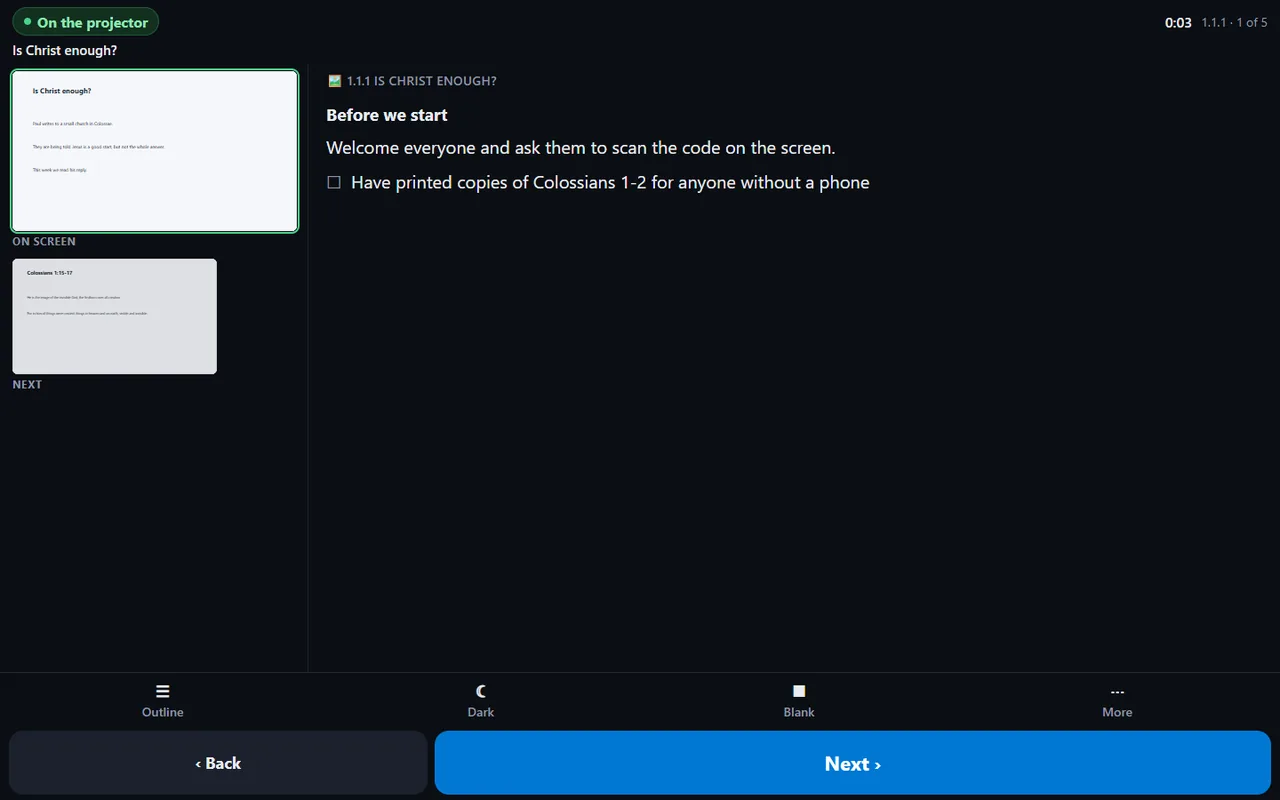
The presenter view on a laptop, the phone clicker, and the phone in TV mode are the same screen with the same tools. On a laptop or a phone held sideways the slides run down the left; held upright, they sit side by side above your notes.
 1
2
3
4
5
6
7
8
9
10
1
2
3
4
5
6
7
8
9
10
The screen chip says where the slides are: On the projector, On the TV, Show on TV or Screen blank. Tap it to change screens, for example to move a projector class onto a TV.
Timer and position. How long you've been teaching, and where you are: 1.1.1 · 1 of 5. Pause and reset the timer under More.
On screen. A thumbnail of exactly what the room sees, outlined in green.
Next. The slide that's coming, so you can introduce it before you click.
Your notes for the slide on screen. Speaker notes from an imported PowerPoint come first, marked as from PowerPoint, then the Teacher Notes page. Slides with neither say "No notes for this slide."
Outline swaps the notes for the whole course outline. Tap any slide to jump there; tap 📝 Notes to go back.
Dark / Light. The clicker is dark by default, which is easier on the eyes in a dim room. Your choice is remembered on that device.
Blank blacks out the big screen. It turns amber and becomes Show slide until you bring the slide back.
More: pause or reset the timer; Exit to My Classes, which leaves the class running; and End the class for everyone. On a laptop it offers Close the presenter view instead.
Back and Next. Next is twice as wide, so it's the one your thumb finds. When a phone is presenting to a TV, quick taps queue up, so three taps are three slides.
What your class sees
Joining takes a phone camera or a code, and nothing else: no app to install and no password. One screen at a time, with big text and big buttons. If someone's phone is set to dark mode, the class page is dark too.
- Waiting: "You're in", with the class name, until you start or between slides while the screen is blank.
- Following along: the slide you're on, laid out to read on a phone, and "The slide changes when the teacher moves on." They can't skip ahead, and they never see your notes. Checklists on a slide show but can't be ticked.
- A question: lettered buttons. Tap to answer, tap another to change, until you show the results.
- Results: their own answer and the correct one, with a nudge to look at the big screen.
- The end: "This session has ended".
Who sees what
| Big screen | Your clicker | Students' phones | |
|---|---|---|---|
| The slide on screen | Yes | Yes, as a thumbnail | Yes, if follow-along is on |
| The next slide | No | Yes | No |
| Speaker notes and Teacher Notes | No | Yes | No |
| Who has joined | Names in the quiz lobby, or a count if anonymous | "N phones following" | No |
| Quiz results | Counts per answer, after you show them | No | Their own answer and the correct one |
| Who | Can do |
|---|---|
| The teacher who opened the class | Everything: present, use any clicker, present to a TV from their phone, and end the class. |
| Co-teachers (the course's instructors) | Read and write Teacher Notes, and drive the slides from their own clicker. They can't run TV mode for a class someone else opened. |
| Your church's admins | Present any course, including courses from the BetterGather library. |
| Students | Join, follow along and answer. Anyone who opens a clicker link without being a teacher is told "Only this class's teachers can run the slides". |
| The TV | Shows the class and never counts as a participant, so it doesn't change the "N of M answered" count. |
With Anonymous answers on, nobody is asked for a name and no name is stored, even for members who are signed in. The big screen shows counts only. The phone keeps a random key so a person can change their answer and can't vote twice. Because answers can't be tied to anyone, they don't count toward course progress.
When something goes wrong
Someone's phone lost Wi-Fi, or they closed the page
The phone shows "Reconnecting…" quietly and catches up as soon as it's back. If they reload or reopen the page on the same phone, they're back in as the same person, with their answers kept.
Someone arrived after the join slide
Press J for the corner join chip, or go Back from the first slide to bring the full join slide back. The code also shows in the quiz lobby and after each quiz. Members can join from the "live now" card in My Classes.
I pressed Esc, or closed the projector window
That only stops presenting on that screen. The room is still open and the phones are still in it. Press Present again to carry on. To close the room, use End room or End the class.
The TV is showing my notes
Your phone is screen-mirroring. Stop mirroring, and put the class on the TV with Cast, AirPlay in the BetterGather app, or bettergather.com/tv and the code.
My phone says "Only this class's teachers can run the slides"
You're not set up as an instructor on this course. Ask an admin to add you in the course's settings, then press Reload.
A co-teacher can't present to the TV
Only the teacher who opened the room can run it on a TV. The co-teacher can still use the ordinary clicker, or open their own class.
The presenter view didn't open
The browser blocked the second window. Click the link that appears on the projector to open it, or allow pop-ups for BetterGather.
I want the TV without the code in the corner
Add ?chip=0 to the end of the TV's address, for example bettergather.com/tv/…?chip=0. The code still shows while the TV is blank.
The class has been open all afternoon
A room closes by itself three hours after it opens. End it when you finish so members stop seeing "live now".
Keys and clickers
A USB or Bluetooth presentation clicker is a keyboard that presses Page Down and Page Up, so it works everywhere the arrow keys do.
| On the projector (laptop keyboard) | Does |
|---|---|
| → ↓ Space Page Down | Next slide. The first press takes the join slide down. |
| ← ↑ Page Up | Previous slide. From the first slide, brings the join slide back. |
| Home End | First or last slide of this lesson. |
| Shift+→ Shift+← | Next or previous lesson. |
| B or . | Blank the screen, and bring it back. |
| S | All slides in this section. |
| J | Show or hide the corner join chip. |
| F | Full screen on or off. |
| Esc | Closes the join slide or the slide grid. Otherwise stops presenting; the room stays open. |
| On a clicker (laptop or phone) | Does |
|---|---|
| → ↓ Space Page Down | Next slide. |
| ← ↑ Page Up | Previous slide. |
| Swipe across the notes | Next or previous slide, on a phone presenting to a TV. |
| B | Blank the TV, on a phone presenting to a TV with a Bluetooth keyboard or clicker. |